
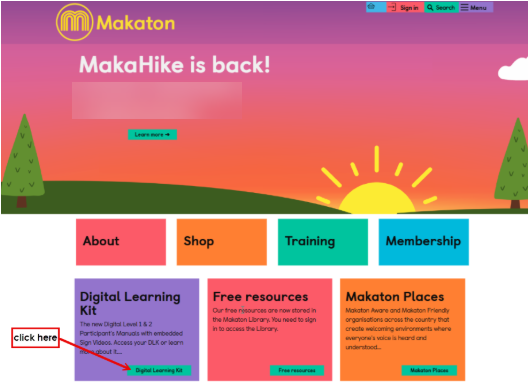
- Click on Sign Into DLK Dashboard or the Digital Learning Kit button on the Makaton website homepage:
- If you already have a Makaton account, log in with your usual username and password.
- OR - if you don't have a Makaton account, click on 'Create a Free Account' then on the next screen enter your name & email address and create a password.
- Enter your Redeem code
- You will be taken to the DLK dashboard where an icon will appear for your new Digital Learning Kit
Features of Your Digital Learning Kit
Take a moment to watch this short video guide and discover all the features of your Digital Learning Kit (DLK) - we hope you enjoy exploring it!
Viewing the DLK on your mobile
For the best experience on smaller screens, such as phones, use the 'phone view' tab—this will automatically reformat the content for easier reading. 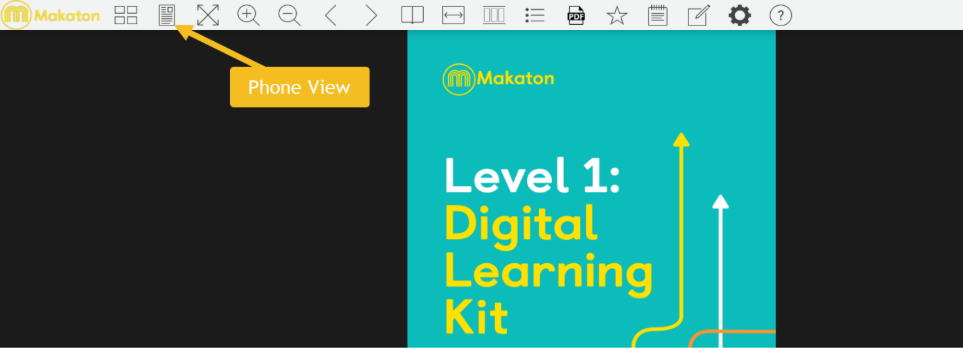
? Watch this short video for tips on getting the most out of the DLK when viewing content on your mobile.
NB: The manual cannot be downloaded or printed, it is designed to be used on-screen.
Top Tip:
login and have a look at your DLK before your Workshop training, and email help@makaton.org if you have any questions.